Search ①: Full-Text OCR + Search & Locate, Enjoy Reading Scanned Books Too
💡What is the OCR feature?
Have you ever run into these problems:
- Scanned PDFs can only be viewed, not searched;
- Selected text is often misaligned;
- Words that are clearly on the page can't be found in search.
The OCR feature solves these three things — "searchable, accurate, and locatable." OCR, or Optical Character Recognition, is the technology that converts text images in pictures and scanned PDFs into digital text that can be selected, edited, searched, and copied for reuse.
💡What is the core purpose of OCR in MarginNote 4?
Broadly speaking, it turns scanned files and image-based documents that currently can't be edited directly into electronic text you can study, annotate, organize, and reuse directly, improving the efficiency of working with your materials.
MarginNote 4 OCR comes in two types — offline OCR and AI OCR — to meet the needs of different scenarios:
• Offline OCR: Works without an internet connection. It supports three recognition modes — Off, Auto, and Always — and can intelligently recognize text in scanned documents, so you can still excerpt, annotate, and search document content even when there is no network.
• AI OCR: Requires an internet connection. It offers stronger recognition, supports all languages along with high-precision recognition of tables and formulas, and further improves accuracy.
1 OCR Recognition (Takes Effect Silently for the Current Document)
Excerpt Tool Settings
Tap Excerpt Tool Settings (shown by the icon above) → find the OCR settings panel:
- Select and recognize text via offline OCR
- OCR recognition language support
- Correct excerpt text online
- Assistive Excerpt
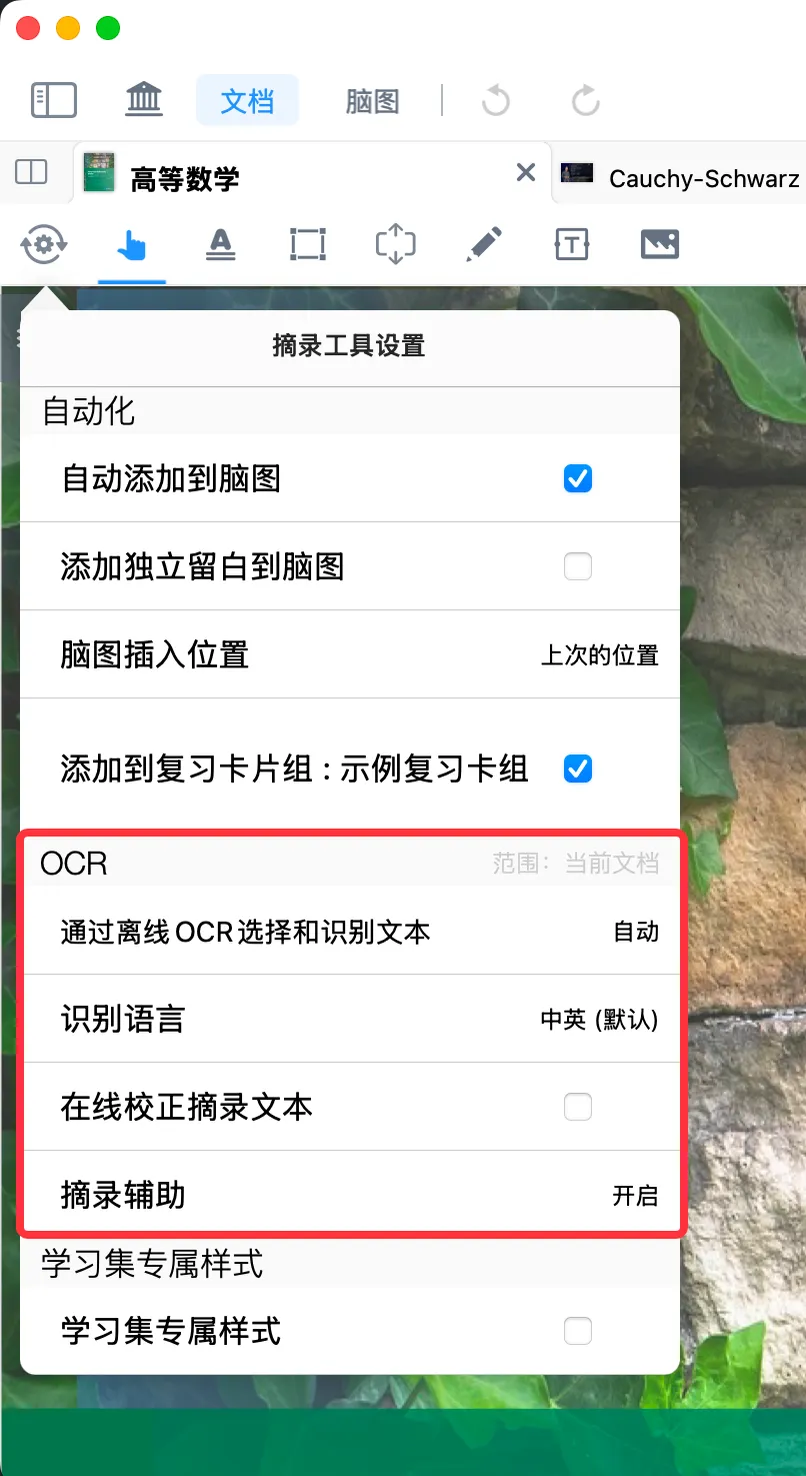
💡The OCR settings above apply only to the current document; each document can have its own OCR settings enabled independently.
1.1 Select and Recognize Text via Offline OCR
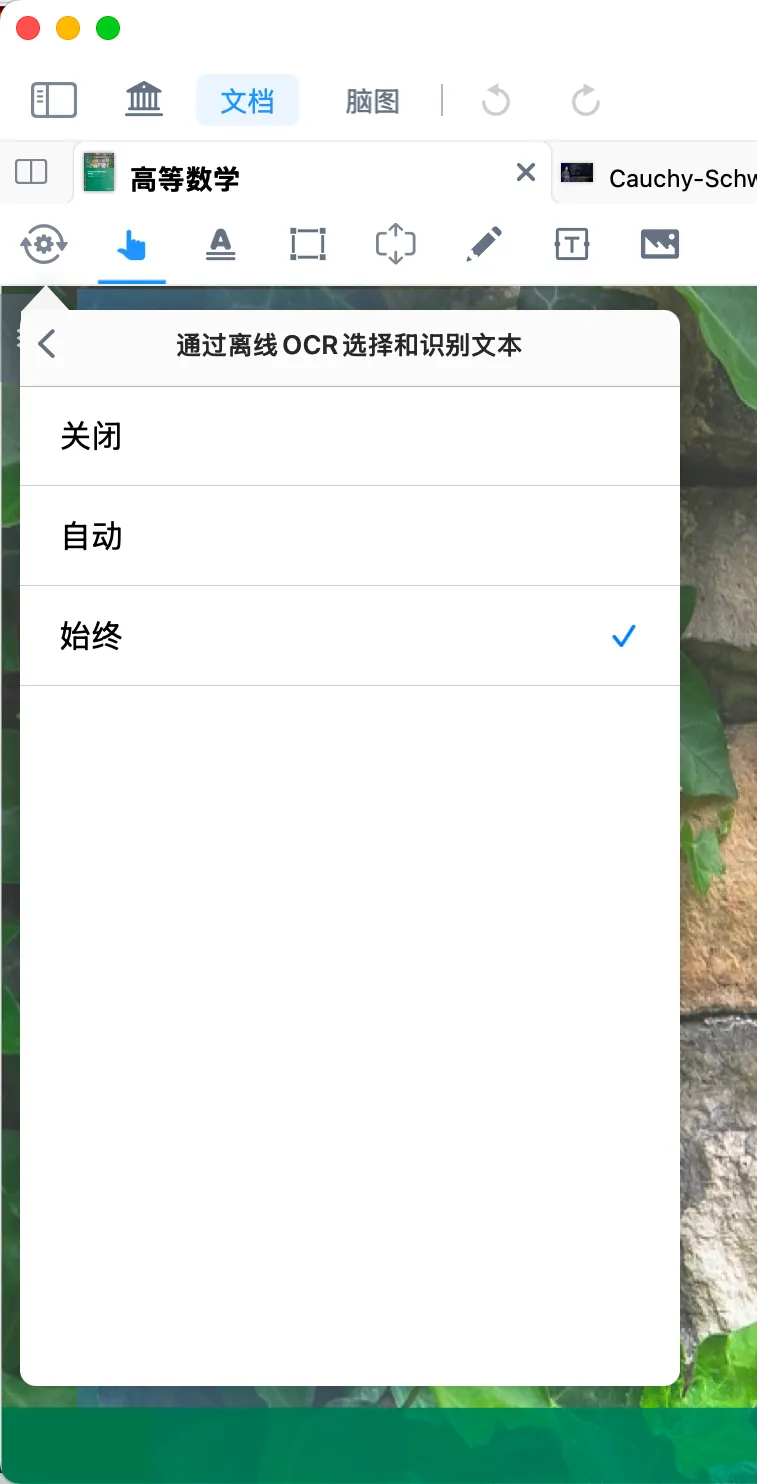
The Offline OCR feature offers three working modes — Off, Auto, and Always — which you can choose flexibly based on the document type:
1.1.1 Off
Does not enable the offline OCR text selection and recognition feature.
💡Suitable when the current document is ultra-high-definition, has a complete native text layer, and needs no OCR enhancement.
1.1.2 Auto (Recommended Default)
If the PDF contains a native text layer, the document's built-in text layer is used first; if it is a scanned PDF with no text layer, offline OCR is enabled automatically for text recognition.
💡Suitable for the vast majority of documents; the system automatically decides whether to enable OCR.
1.1.3 Always
Regardless of whether the scanned PDF has a native text layer, it **forces the use of offline OCR **to perform text recognition.
💡Suitable when the native text layer is of poor quality, when selections are misaligned, or when search is inaccurate.
1.2 OCR Recognition Language Support
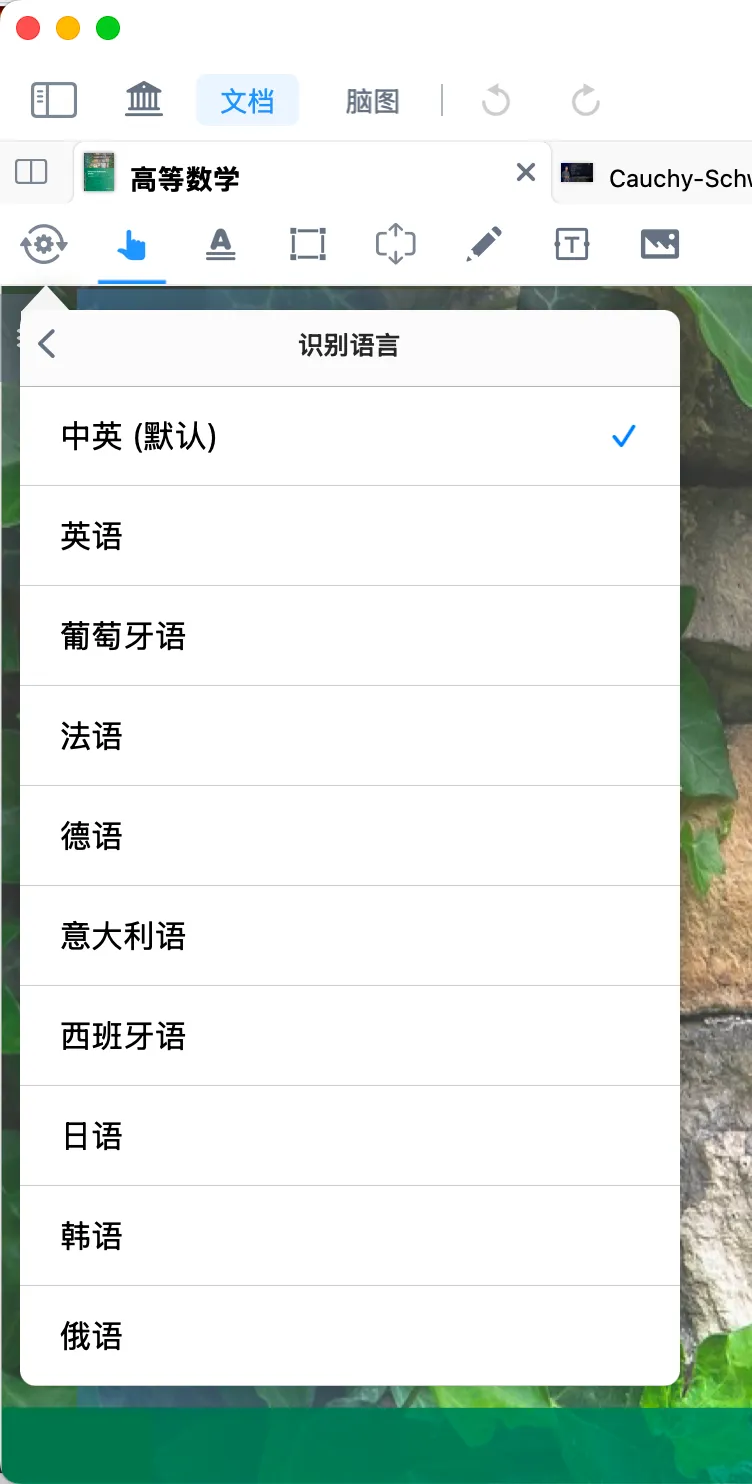
- Default recognition languages: bilingual Chinese-English recognition, suitable for mixed Chinese-English material.
- Supported OCR recognition languages: English, Portuguese, French, German, Italian, Spanish, Japanese, Korean, and Russian.
💡When foreign-language recognition or translation results look wrong, first check whether the language setting matches the document.
1.3 Correct Excerpt Text Online
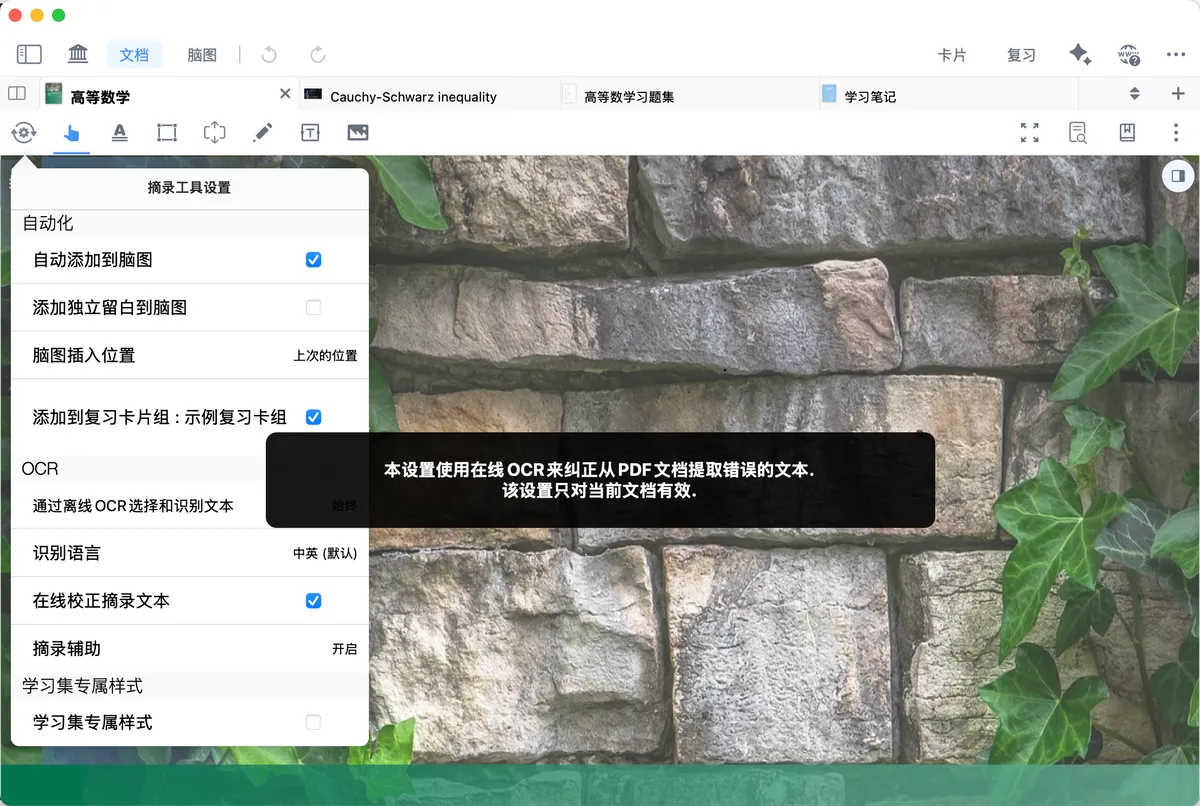
Correct Excerpt Text Online relies on the Baidu OCR engine. Using online OCR recognition, it precisely corrects the current excerpt text and improves text recognition accuracy.
💡We recommend enabling online correction in the following cases: severe word breaks, frequent typos, misrecognized proper nouns, or garbled text near formulas.
1.4 Assistive Excerpt
MarginNote 4 now integrates a large language model for AI document layout, enabling fast recognition and excerpting of the layout positions of elements such as titles, images, and formulas in documents (especially academic papers).
For details, see Auto-Generate Mind Map ①: One-Click Excerpt Using AI Models

⚠️Tip: The Assistive Excerpt feature increases power consumption and can easily cause crashes on some low-performance devices, so we recommend enabling it only when you really need it.
2 AI OCR Recognition (Stronger Capability, Only Takes Effect During Excerpting)
💡 Advantages of AI OCR:
- Stronger recognition that supports all languages;
- Higher-precision recognition and layout for tables, formulas, and complex-layout text.
For details, see: AI OCR: Excerpt → Recognize → Structured Knowledge, All in One Step
3 OCR Search
Full-Text Search
Tap the Full-Text Search button (as shown by the icon above), type a keyword in the search bar, and you can run a text search against the document's built-in text layer in the current document or current study set.
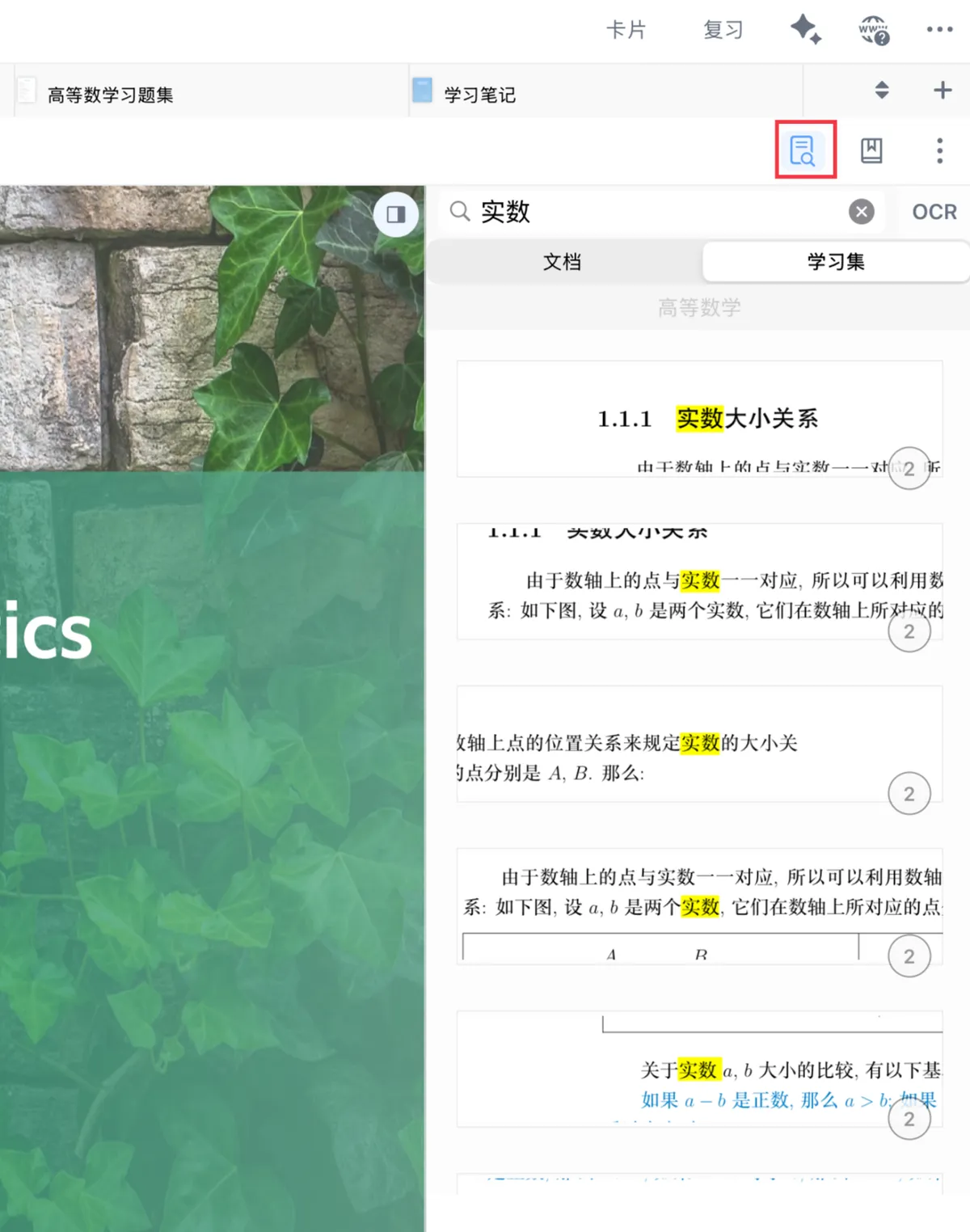
Once OCR is enabled, MN4 calls on offline OCR: even for a scanned PDF with no text layer, you can search for the exact text in the book and jump to the corresponding page number.
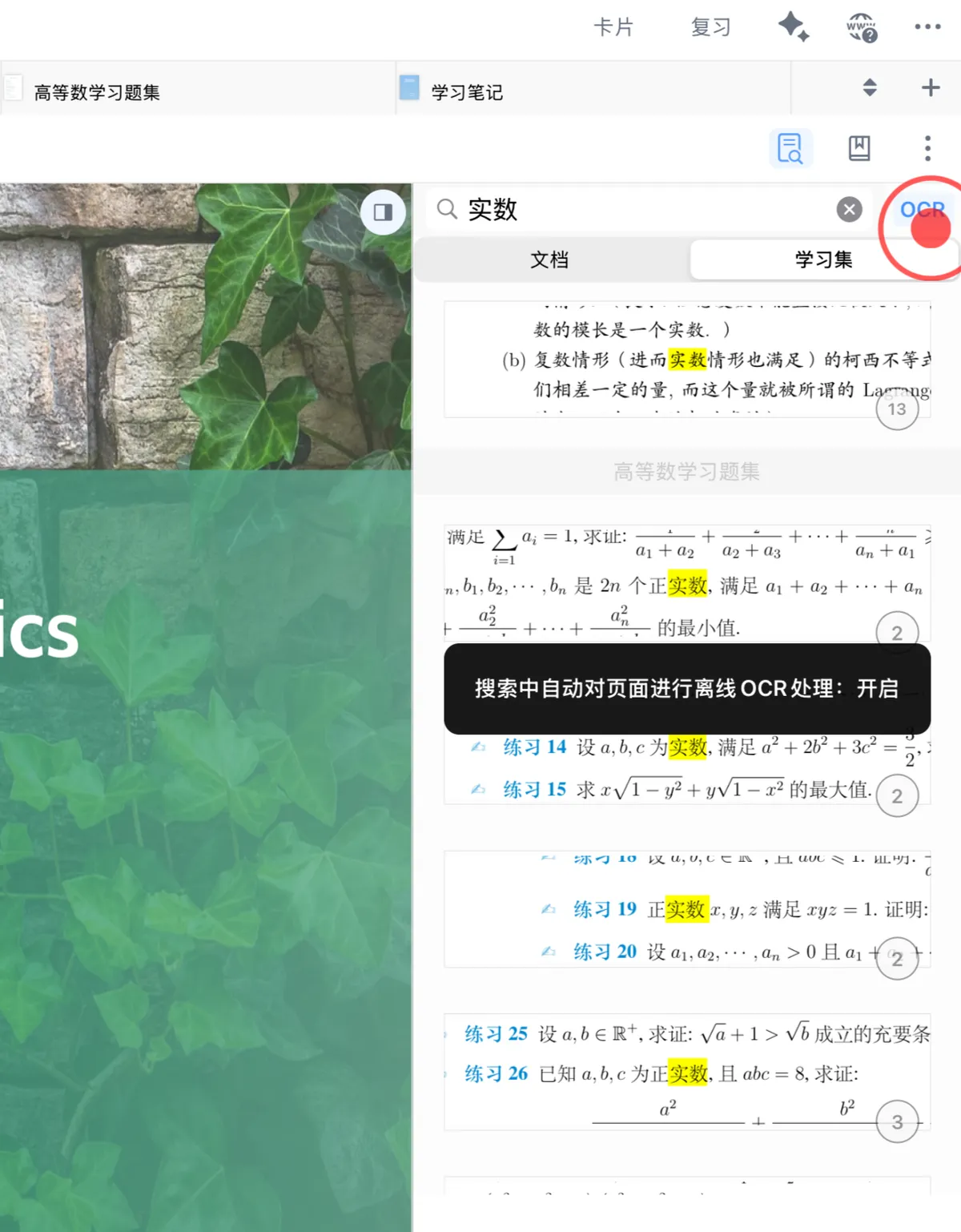
💡If you're not sure of the keyword but know roughly which chapter it's in, we recommend switching to Search ②: View Document Table of Contents / Thumbnails / Bookmarks / Handwritten Annotations / Cards for navigation.
4 Advanced OCR Settings
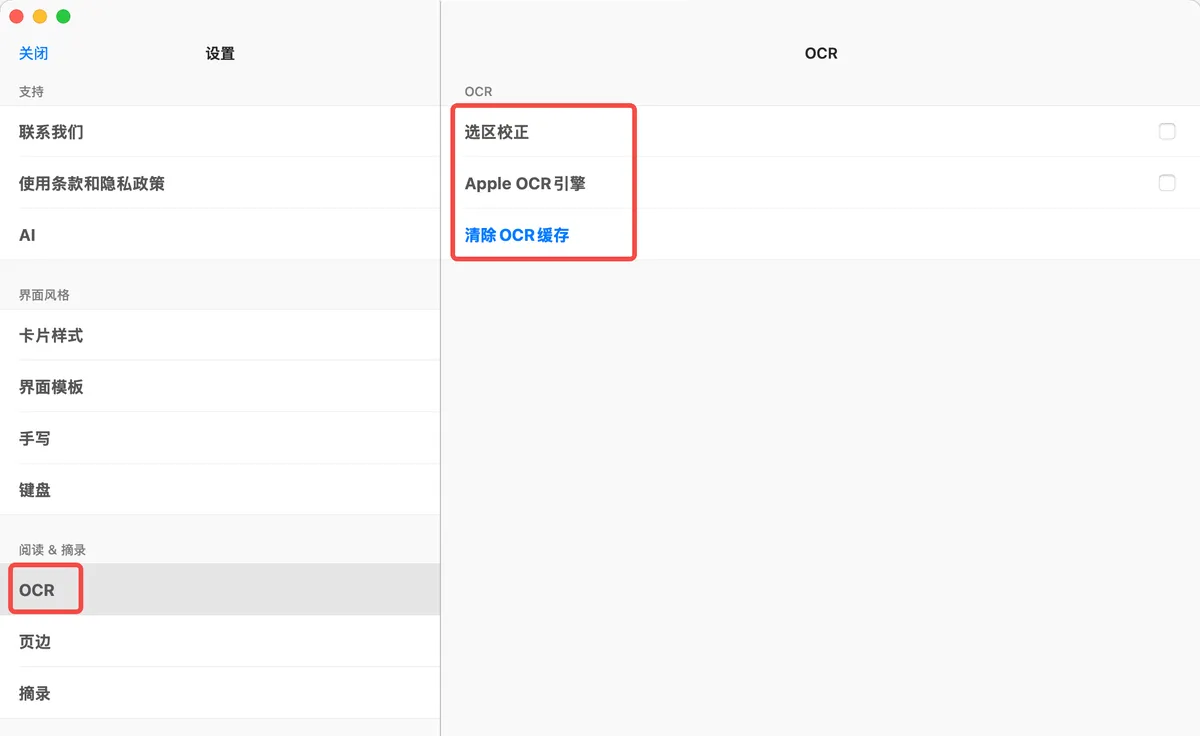
4.1 Selection Correction
Intelligently corrects document selections to resolve misalignment between the text layer and the scanned document selection, improving the precision of text selection and recognition.
4.2 Apple OCR Engine
Lets you switch to the Apple OCR engine, which can optimize recognition for specific types of documents and adapt to different scenarios.
4.3 Clear OCR Cache
Clears local OCR cache data to resolve text recognition failures caused by cache problems.
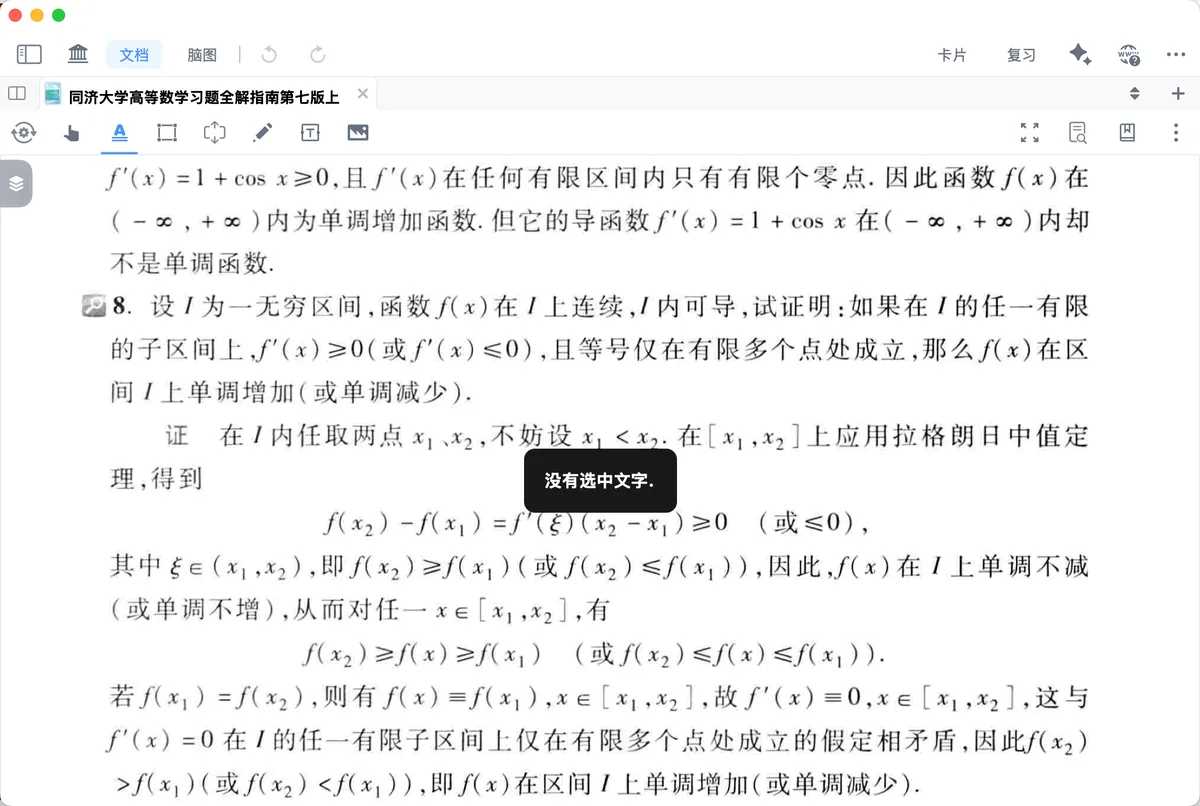
❗Common OCR recognition issues: "No text selected" / recognition failed?
- For a scanned PDF: first confirm that offline OCR is enabled;
- If the text is garbled: check whether the language matches;
- For occasional failures: clear the OCR cache and try again.
5 FAQ
-
Why can't I find text in search when it's clearly on the page?
First check whether offline OCR is enabled, whether the recognition language matches, and whether the OCR cache needs to be cleared.
-
Is the Always mode of OCR recognition necessarily better?
No. Always mode consumes more power; we recommend using it only when recognition is abnormal or the text layer is of poor quality. 3. Should I look at Search ① or Search ② first?
Choose based on your goal.
To search for a specific keyword, see Search ①: Full-Text OCR + Search & Locate, Enjoy Reading Scanned Books Too;
To find content by chapter and reading traces, see Search ②: View Document Table of Contents / Thumbnails / Bookmarks / Handwritten Annotations / Cards. 4. Will clearing the OCR cache lose my notes?
It won't delete your note content; it mainly rebuilds OCR-related cache data.